
Help Center
Support & FAQ
Everything you need to get the most out of T'doff. Can't find your answer? Contact us and we'll help.
Need Product Help?
Use the public tracker for bugs, feature requests, and roadmap updates.
Report issues, vote on priorities, and follow official responses from the team in one place. Use contact for private account or billing problems.
Getting Started
-
T'doff is available on the Apple App Store. Search for "T'doff" or tap the Download button anywhere on this site. The app requires iOS 16 or later on iPhone.
-
Pricing and feature availability can change over time. Check the App Store listing for the most current details.
-
No — Apple Watch is optional. T'doff works fully on iPhone alone. The Apple Watch companion app gives you quick wrist glances of key data during a round without needing to pull out your phone, but every feature is accessible from iPhone.
-
T'doff supports iPhone models running iOS 16 or later. For the best experience — including location accuracy and smooth Apple Watch pairing — we recommend iPhone XS or newer.
-
Open T'doff and tap Start Round from the home screen. The app will ask for location permission (required for distance data), then guide you through hole-by-hole setup. You can set your club bag distances in Settings before your first round for more personalised club guidance.
Using the App
-
Club guidance is calculated from a combination of: the distance to your target, your personal club carry averages (set in the app), current conditions like wind and temperature, and your recent shot history. The more rounds you log, the sharper the recommendations become over time.
-
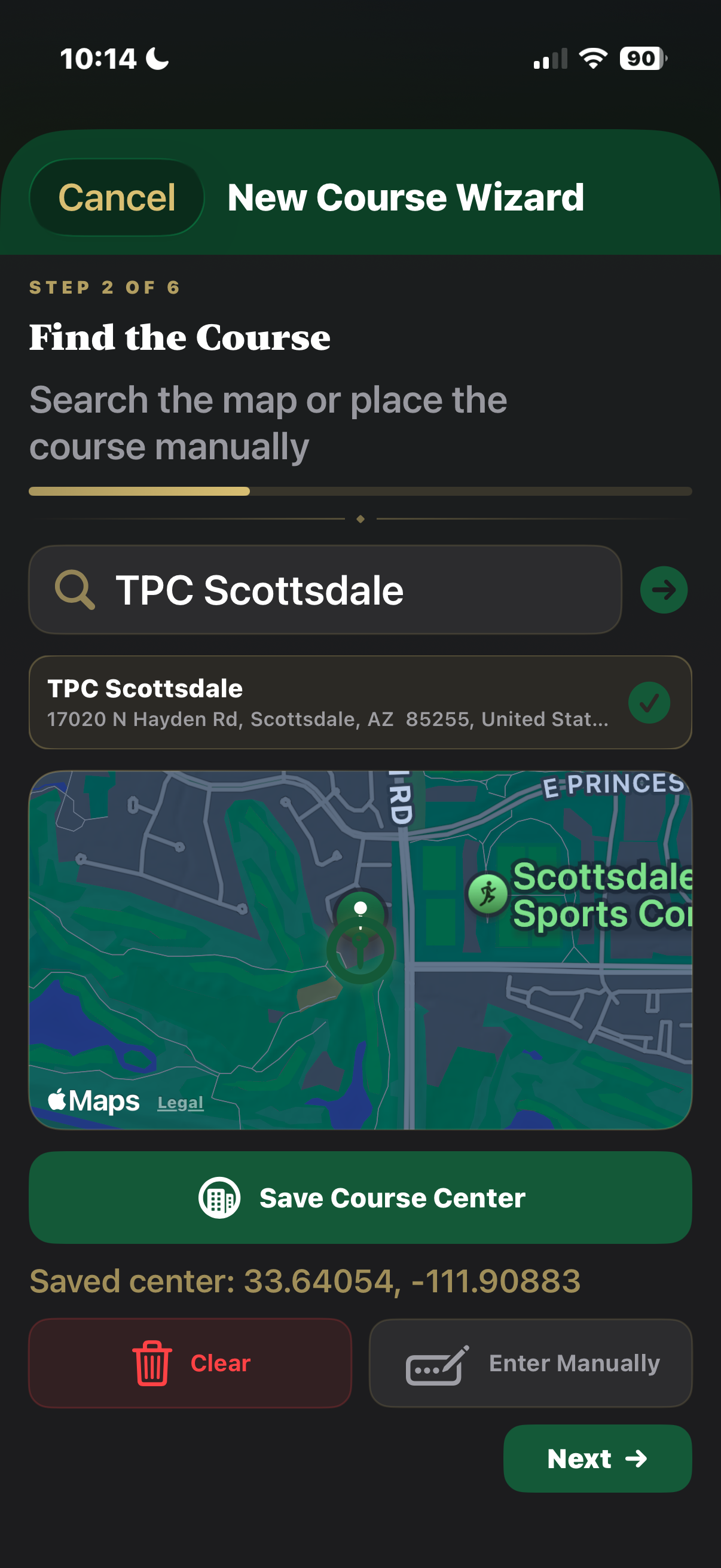
Yes. T'doff uses your GPS location to calculate distances in real time, so it works on any course without needing a pre-loaded course map. T'doff uses Apple Maps built into iOS. Our mapping tools add GPS coordinates over the map. Distance readings update automatically as you move around the hole.
-
T'doff uses your iPhone's built-in GPS, which is typically accurate to within 3–5 metres in open outdoor conditions. Distance accuracy may be reduced in heavily wooded areas or deep gullies where GPS signal can be obstructed.
-
Tap Track Shot in the app, before you swing. After the swing, note the result (fairway, rough, green, etc.), and optionally add a quick note.
-
Yes. It can be edited directly in the shot log in the Shot Tracking tray on the scorecard, with no need to leave the scorecard.
-
Go to Settings → My Clubs in the app. You can add each club in your bag and enter your typical carry distance. T'doff uses these distances as the baseline for all club guidance, and refines them automatically as you log more shots.
Apple Watch
-
The T'doff Apple Watch companion shows you: current distance to pin, recommended club, par for the hole, and your hole score to date — all at a glance without touching your iPhone. You can also log a quick shot result directly from your wrist. Additionally, two new features are being worked on. One is Swing Capture - Live Swing Stream data from the watch. Additionally, sync a T'doff created course to your watch and play the entire game from your watch. (sync back later)
-
T'doff supports Apple Watch Series 4 and later running watchOS 9 or higher. Apple Watch Ultra and Ultra 2 are fully supported and benefit from extended GPS accuracy.
-
No. The watch app does not need to stay connected continuously, and it syncs when connection is available.
-
When you install T'doff on iPhone, the Watch app installs automatically if automatic app installation is enabled in the Apple Watch app on your iPhone. You can also open the Watch app on iPhone, scroll to Available Apps, find T'doff, and tap Install.
Data & Privacy
-
All your round data is stored on your device by default. If you have iCloud Drive enabled, data is backed up to your private iCloud account so it transfers when you get a new phone. We do not have access to your round data.
-
Yes. Go to My Rounds → ⋯ Menu → Export to download a CSV of your complete round history, including hole scores, shot logs, club selections, and distances. You can open this in Numbers, Excel, or any spreadsheet app.
-
No. T'doff does not sell personal data. Location data is used only on-device to calculate distances during a round — it is never uploaded to our servers or shared with third parties. See our Privacy Policy for full details.
-
You can delete individual rounds from My Rounds by swiping left and tapping Delete. To erase all app data, go to Settings → Reset → Delete All Data. Deleting the app from your iPhone also removes all local data immediately.
Troubleshooting
-
Make sure location permission is set to While Using the App (or Always) in iPhone Settings → Privacy & Security → Location Services → T'doff. Also check that you have a clear view of the sky — GPS accuracy drops under thick tree cover. A quick app restart usually resolves temporary GPS drops.
-
Try these steps in order:
- Make sure Bluetooth is enabled on your iPhone.
- Keep iPhone and Apple Watch within 10 metres of each other.
- Force-quit T'doff on both devices and reopen on iPhone first.
- On your iPhone, open the Watch app → My Watch → T'doff and toggle the app off and back on.
- If the issue persists, restart both devices.
-
Check your club carry distances in Settings → My Clubs. If your distances haven't been updated recently, adjusting them is the fastest fix. The more rounds you log with accurate results, the better the app learns your actual distances over time.
-
First, force-quit and reopen the app. If the problem continues, check that you're running the latest version of T'doff from the App Store. Still stuck? Please contact us with your iPhone model and iOS version so we can investigate.
-
We genuinely love hearing from players. Use the public tracker for bugs and feature requests so others can vote on priority, or use the Contact page for private support issues. Include as much detail as you can - screenshots are always helpful.
Still need help?
We're here for you.
Can't find the answer you're looking for? Send us a message and a real human will get back to you.